Nodes and packages
Every node on the canvas comes from a package: a small bundle of node types, with the code and libraries they need. The built-in nodes are one package that every project has, the Node Catalog holds more, and you can save your own.
Add a package to a project
On the canvas, open Data > Node Catalog, or open the Node Catalog dropdown in the Tools panel and click Browse Node Catalog +. The drawer has two tabs: Browse all, and In project for the packages this dataflow uses. In the catalogs, a project is one of your saved dataflows.
Click Add to project on a package. A dialog lists the permissions it asks for and the Python and JavaScript libraries it depends on; click Add to project there to install it. Its nodes then appear in the Node Catalog dropdown, ready to drag onto the canvas. Remove from project takes a package out of this dataflow. Installing a package runs its setup code, so add only packages you trust.
The Node Catalog tab at the top of the Projects page lists the same packages for your whole account. There, Add to all projects adds a package to every project you have and to new ones. To take it out again, use Remove from project in each project's drawer.
Versions and your own packages
Every package has a version. When the catalog holds a different version of a package you use, its card shows an Update to note with that version and an Update button; on the Node Catalog page, the button is Update all projects.
You can also save a node you built into a package of your own. Click the cog in the node's header to open Node settings, click Save as package node…, and choose New package… or one of your packages. Read-only packages, such as the built-in one, are never offered as a target, so their nodes go into a new package or one of yours. Build a package covers versions and forks.
To share a package, click the download icon on its row in the Node Catalog dropdown to export it as a .curio.zip file. Import package, at the bottom of the drawer, installs one. Authoring nodes covers building packages.
Python libraries
Nodes often need Python libraries, and Curio installs them in three ways:
- With a package. Adding a package installs the libraries it declares. Opening one of your dataflows that uses packages you do not have installs those too, and a message says so. A package that is not installed automatically, such as a very large one, shows Missing node package on its nodes, with a button that opens the Node Catalog on it.
- When a node needs one. If your code imports a library that is not installed, the node's error names the library and offers a button to install it, then Run node to try again.
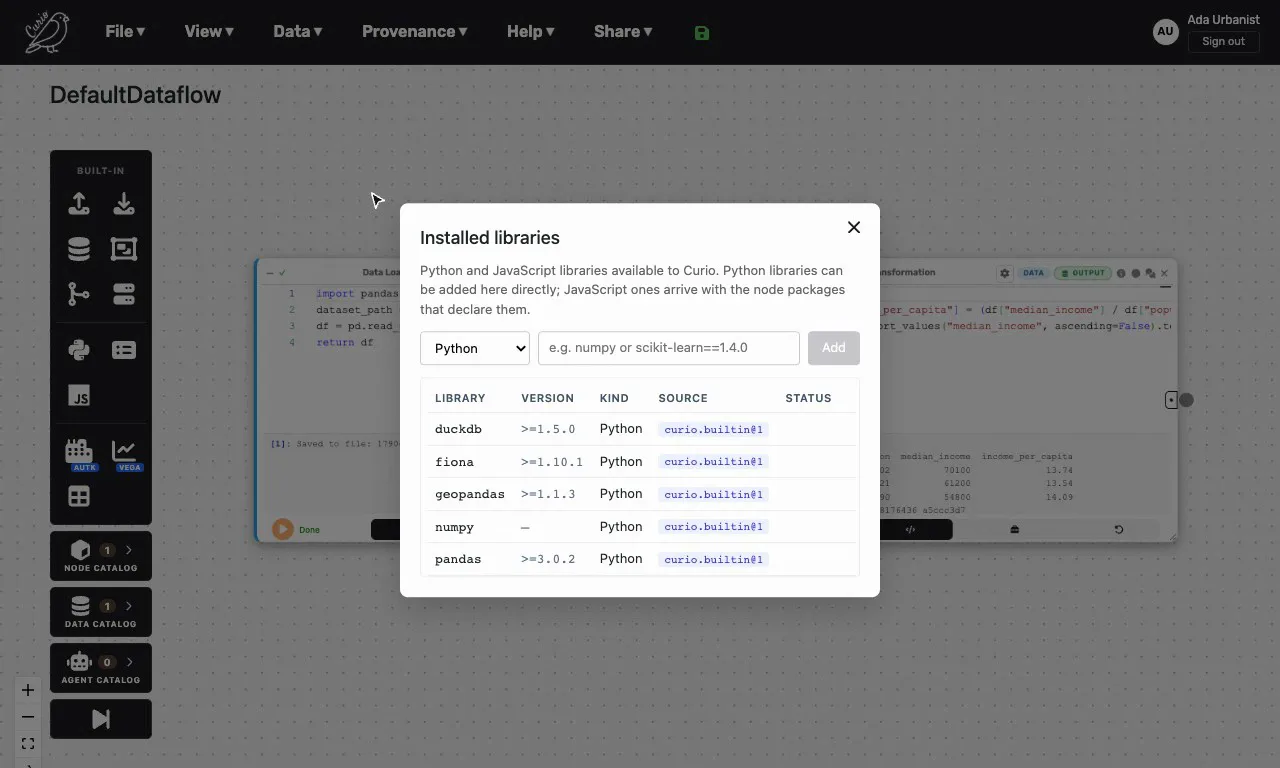
- By hand. Data > Installed libraries lists every library and where it came from. Type a Python library, such as
numpyorscikit-learn==1.4.0, and click Add. JavaScript libraries only arrive with the packages that declare them.
On a server with sign-in, guest accounts cannot install Python libraries, so sign in with an account first.