

Scenario Catalog
The Scenario Catalog lists the scenarios of all your projects, the examples in your account included. It keeps no copy of its own: scenarios live in their projects, so editing a project changes its scenarios in the catalog, and deleting a project removes them.
Browse the scenarios
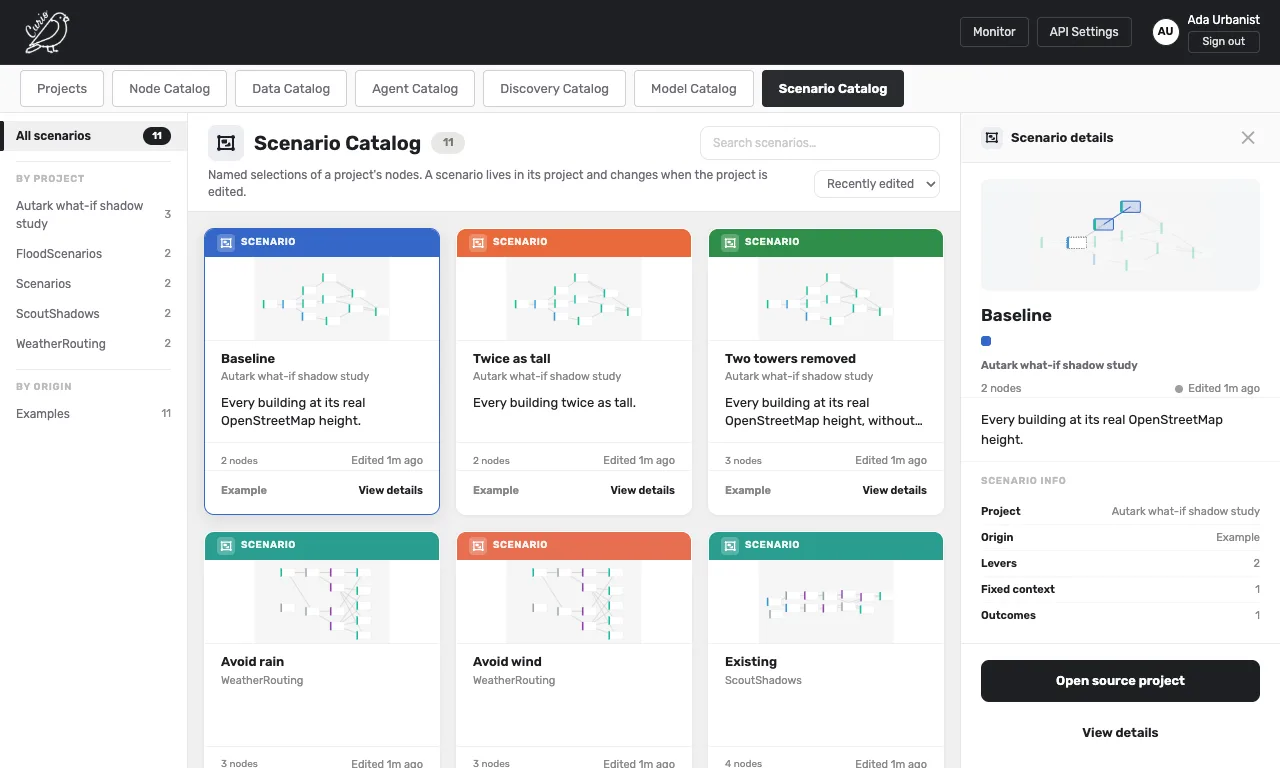
Open the Scenario Catalog tab at the top of the Projects page. Each card shows a scenario's name in its color, its project, how many nodes it holds, its description and its project's graph. Search by name, description or project, sort by Recently edited, Name or Project, and filter by project or by origin (Your dataflows or Examples) in the left rail. The drawer on the right sums up the selected scenario.
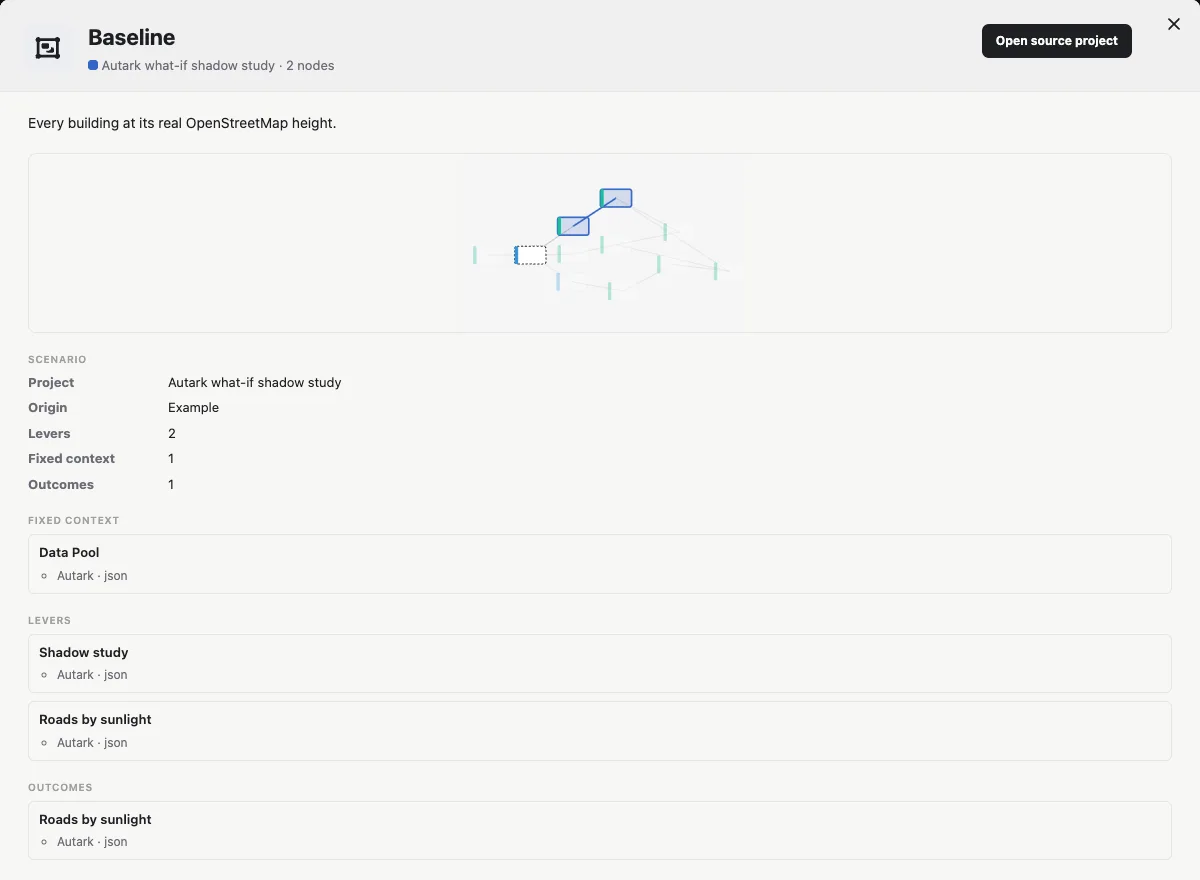
View details shows the project's graph, with the scenario's nodes in its color and its fixed context outlined, and three lists: Fixed context, Levers and Outcomes, each node with the output its project saved. An outcome with No saved output has not run since the scenario was defined. Open source project opens the project on the canvas.
Bring a scenario into another dataflow
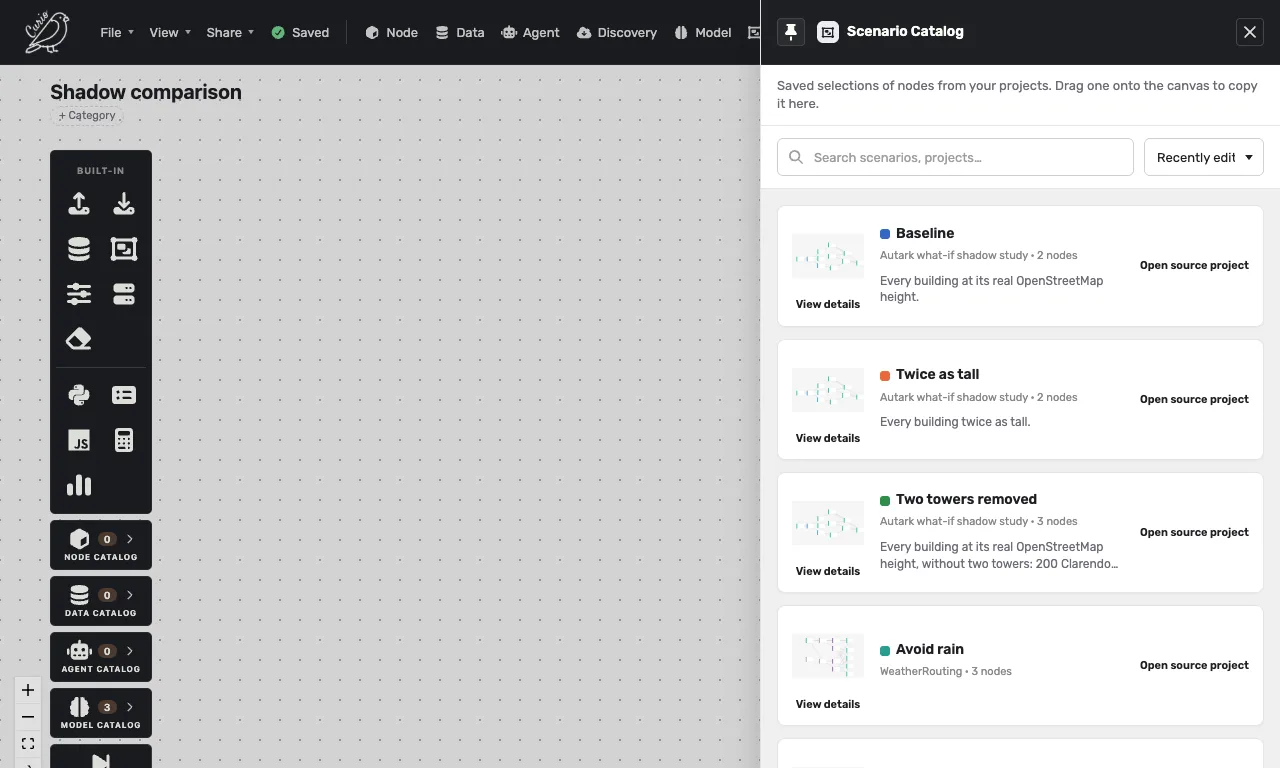
On the canvas, click Scenario in the top bar to open the catalog's drawer, and drag a scenario's card onto the canvas.
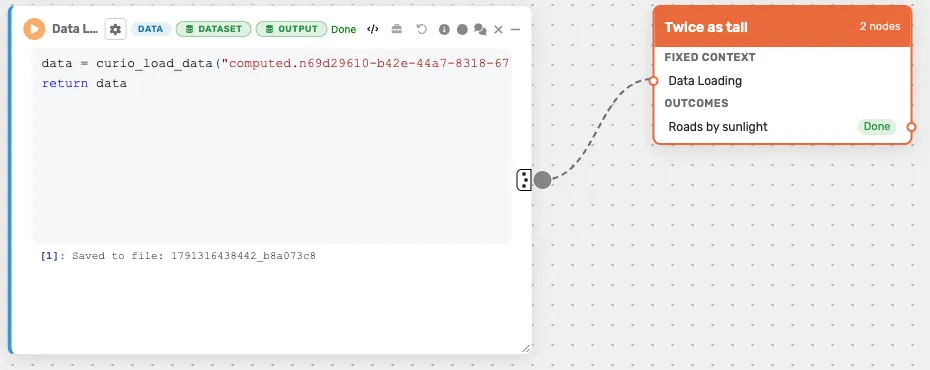
It arrives as a copy, collapsed where you dropped it, in its own color:
- its levers are copied, each naming the node it was copied from;
- its fixed context arrives as Data Loading nodes that read copies of what its project saved, wired where the context was, and a Parameter node of its context comes with its value;
- its outcomes show the results its project saved, before anything runs;
- the packages its nodes use are added to the dataflow.
Editing the copy leaves the original as it is. A second scenario of the same project, dragged into the same dataflow, shares the fixed context the first one brought.
To compare the scenario with your own work, connect its outcome and yours to a Compare Scenarios node. To run it on your own data, double-click its box, delete a Data Loading node, and connect your node where it was; Run scenario then runs your node first.
A drop is refused, and nothing is added, when:
- a node of its fixed context has no saved output: run the scenario in its project and save it, then drag it again;
- its nodes need a package, a dataset or a model your account does not have; the message names it;
- it brings a Parameter node whose name the dataflow already uses: rename yours, then drag it again.
Share scenarios
Scenarios travel with their dataflow. Duplicate on a project's card copies its scenarios as they are at that moment. A dataflow someone shares with you lists its scenarios in your catalog once you save it to your projects with File > Save dataflow.